How to Setup Your Forex EA
Follow these simple steps to install and configure your Expert Advisor in MetaTrader 5
Haven't Downloaded Your Free Forex EA Yet?
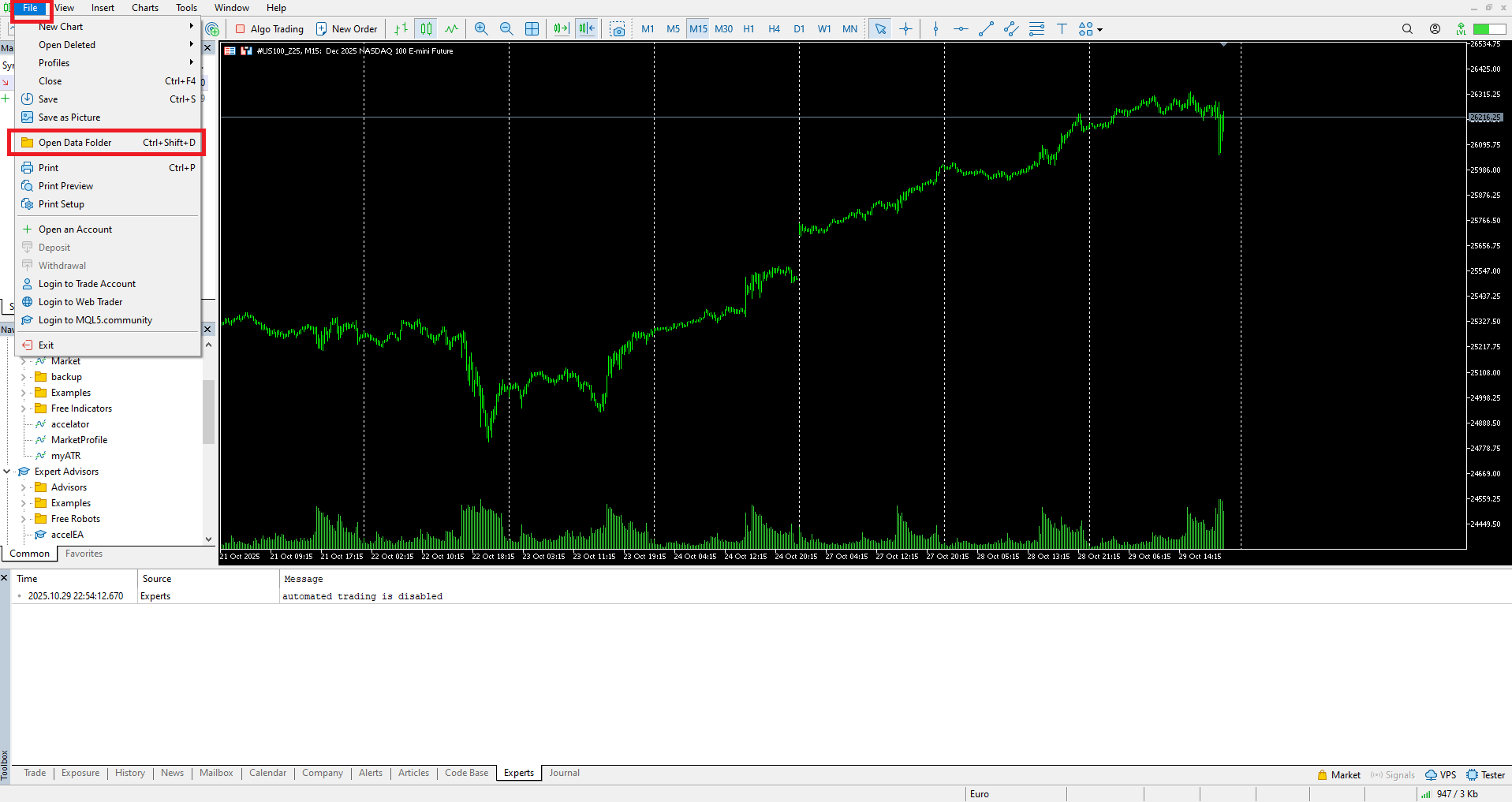
Open Data Folder in MetaTrader 5
Open MT5. Click File then Open Data Folder.
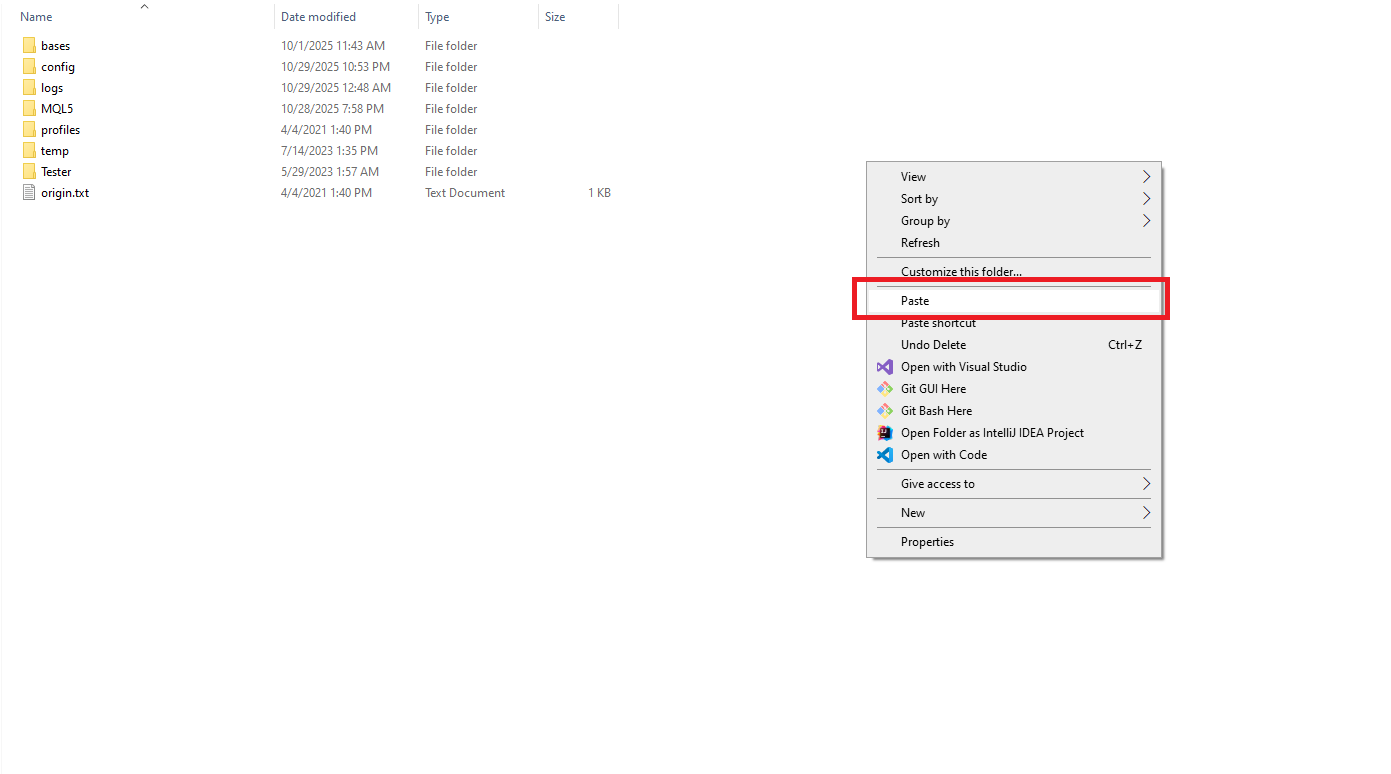
Copy EA to MQL5 Folder
Copy the downloaded EA and paste it into the opened data folder.
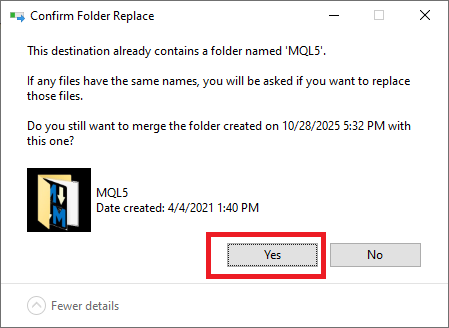
Confirm Folder Replace
Confirm folder replace. Press Yes.
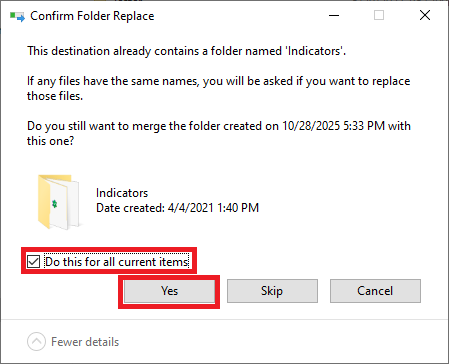
Apply to All Items
Tick all current items and press Yes.
Restart MT5 and Open Symbols
Close MT5 then reopen. Click View then Symbols.
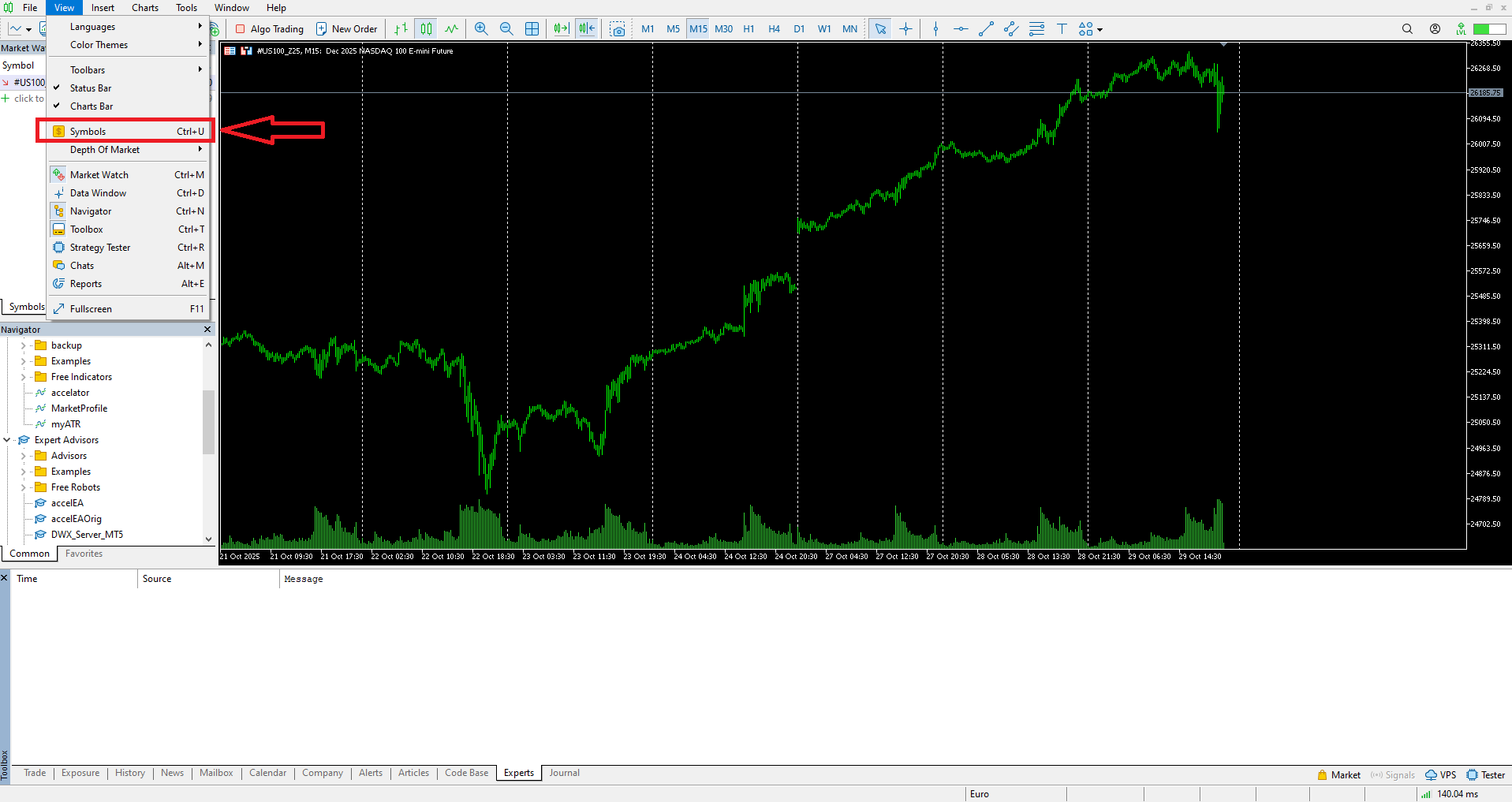
Find and Show NASDAQ100 Symbol
Find the NASDAQ 100 (the name might be different for each broker) index symbol for your broker, click on it, and then click Show Symbol.
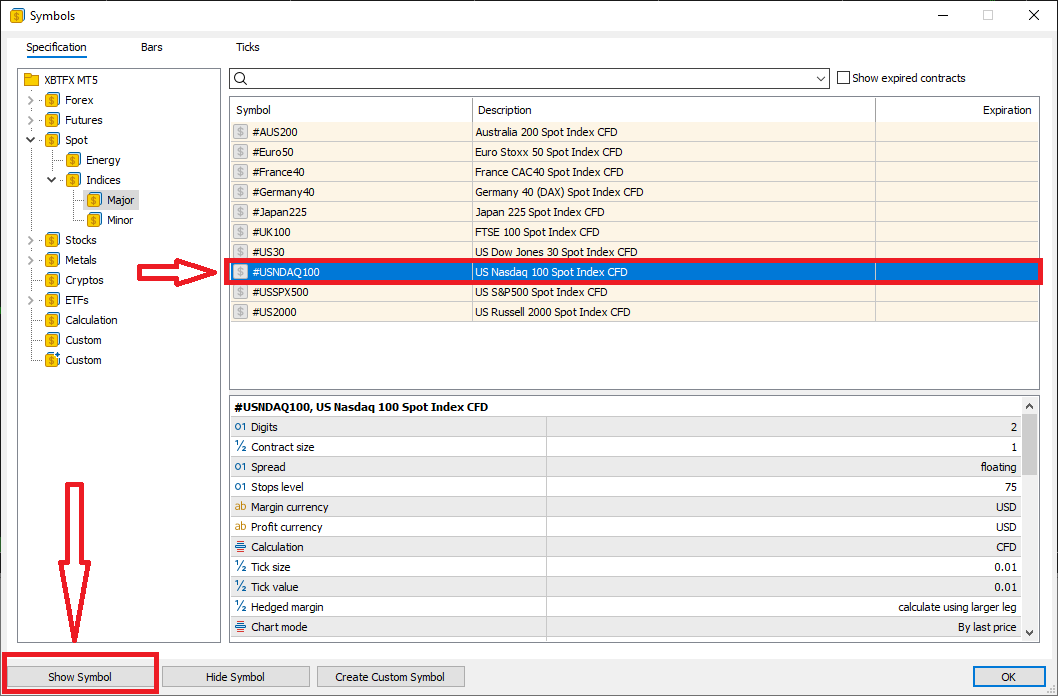
Open Chart Window
Find NASDAQ100 in the Market Watch section (View->Market Watch if not visible). Right-click and select Chart Window.
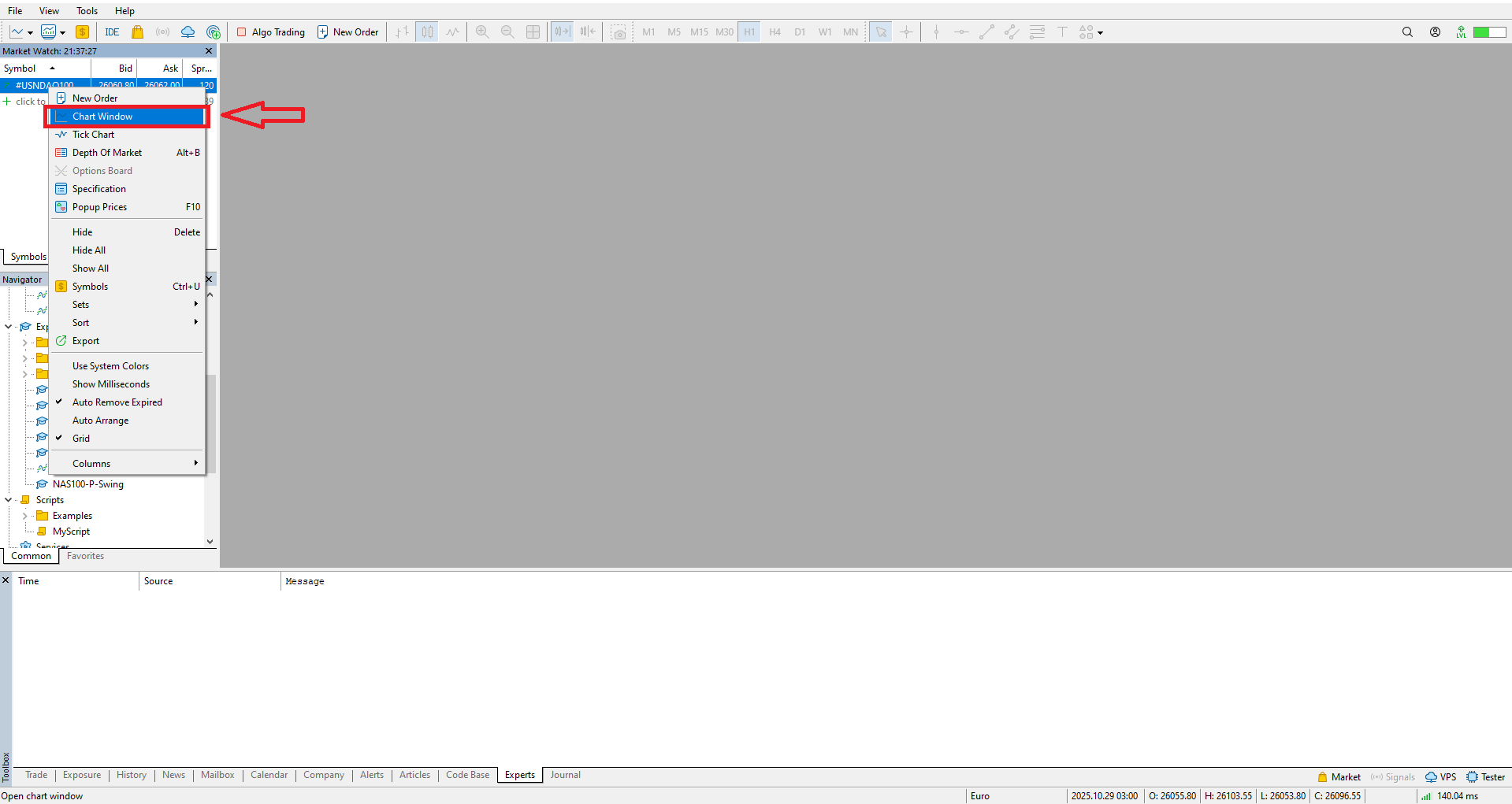
Select M15 Timeframe
Select M15 timeframe. EA works only on M15.
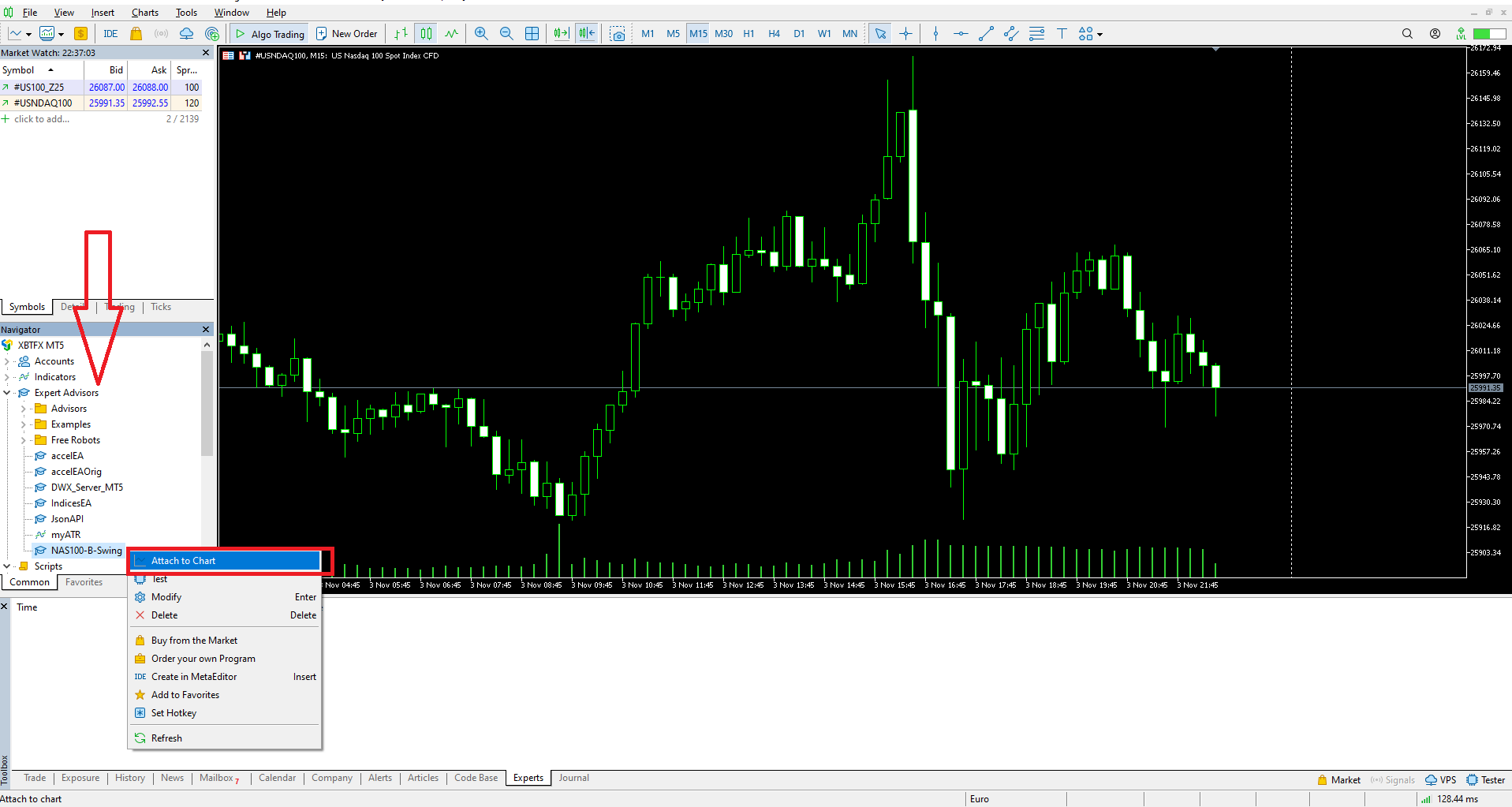
Attach EA to the Chart
In Navigator Section (Click View->Navigator if it's not visible), find Expert Advisors, right-click on NAS100-B-Swing and select Attach to Chart.
Configure Input Parameters
In the Inputs tab, you need to configure two main sections:
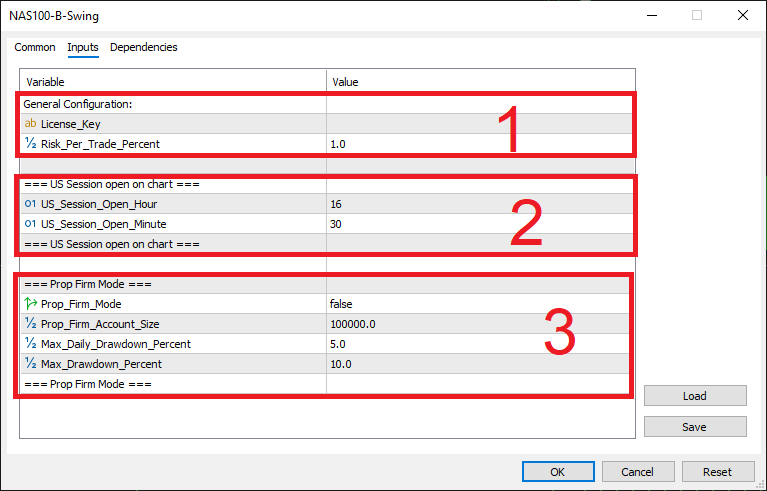
Section 1: General Configuration
- Copy and paste your license key, which has been emailed to you.
- Set the risk per trade as a percentage amount (1 means 1% of the balance risk per trade)
Section 2: US Session Timing (Very Important)
- Open the Nasdaq100 chart window, select the 15-minute timeframe in the MetaTrader 5
- Find the candle where the US session starts.
- Look at the candle open times in the chart - that's your US session open time.
- Input that value in the EA settings
- Note: The EA only trades NASDAQ during the US session
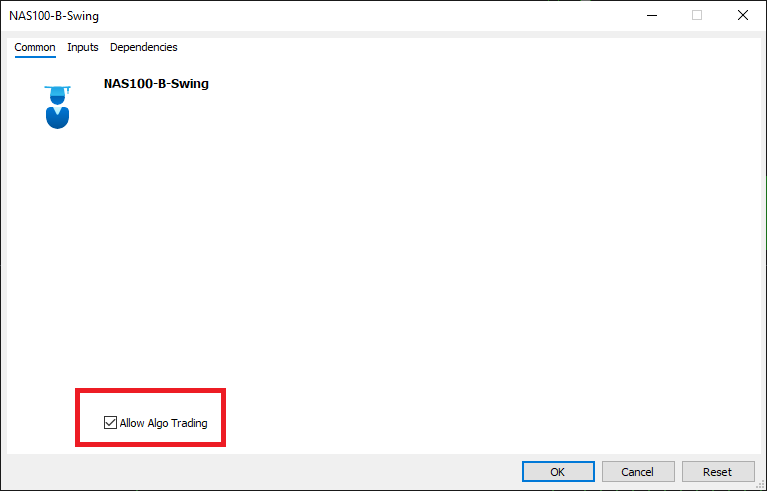
Enable Algorithmic Trading
In the Common tab, enable Allow algorithmic trading.
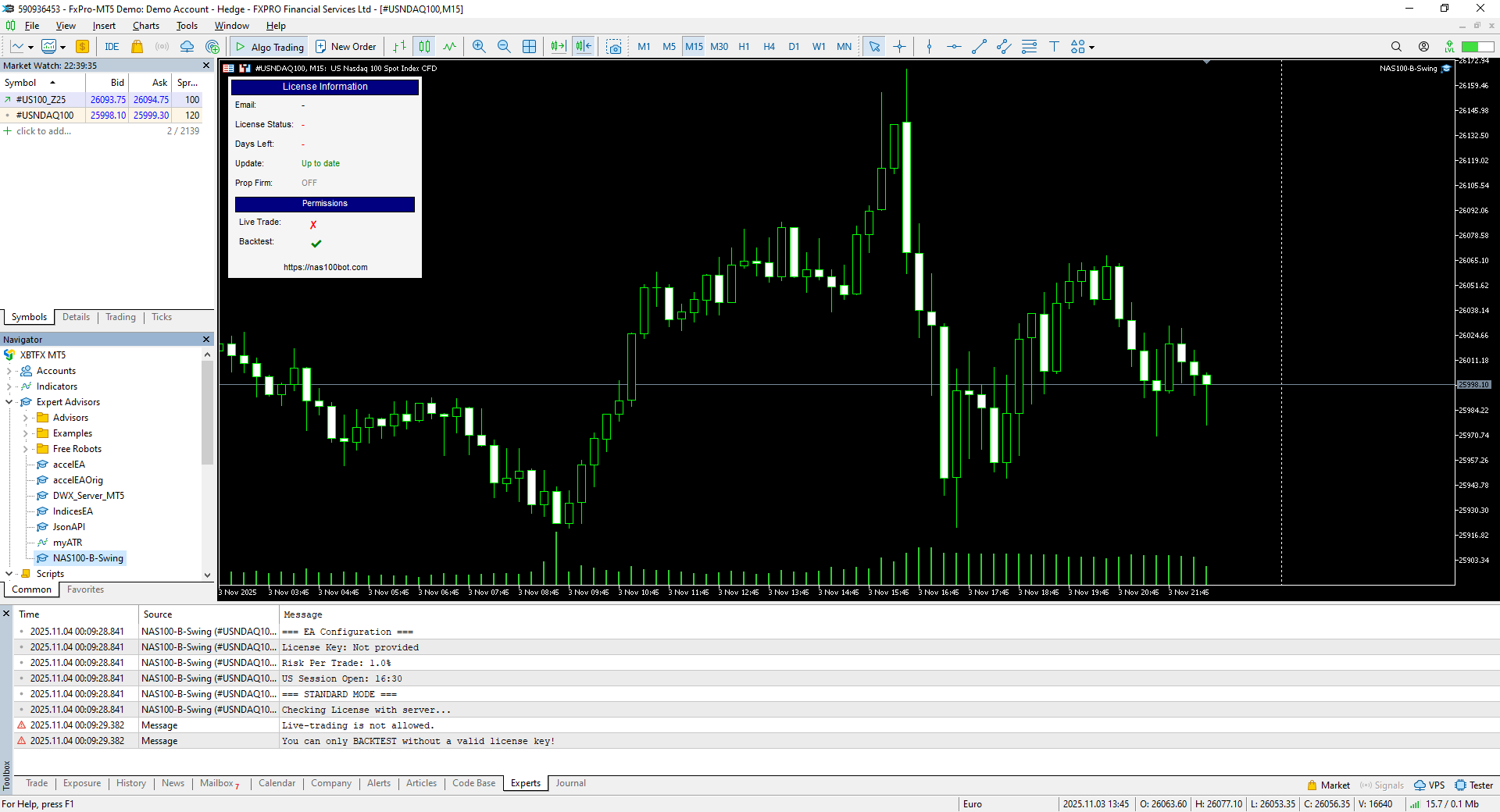
Verify EA Status
You should see a message indicating live trading is not allowed without a valid license key.
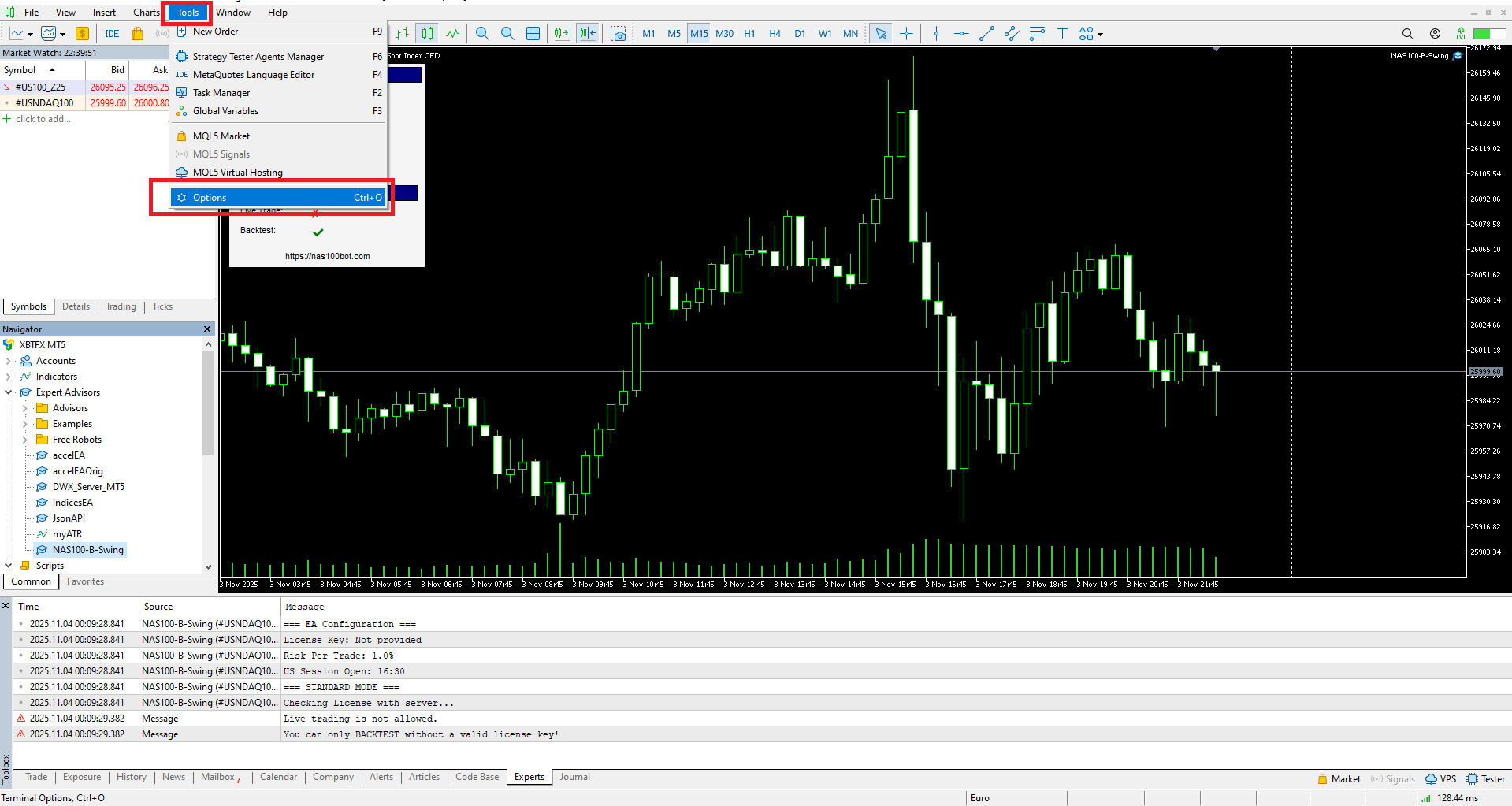
Open Options Menu
Go to Tools->Options to open the options menu.
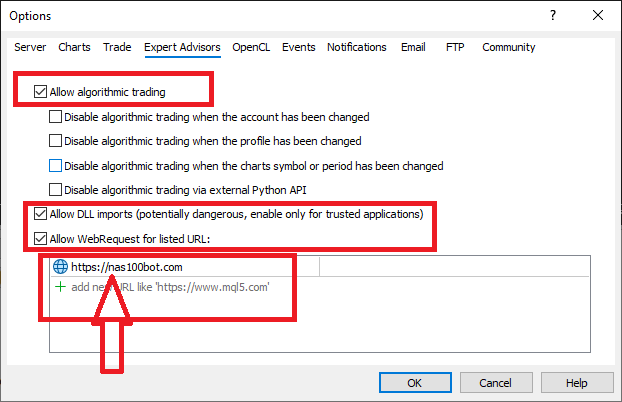
Configure Global Settings
Enable Allow algorithmic trading and add https://Nas100Bot.com to allowed URLs.
Setup Complete!
You are now ready to move on to your live trading; everything is setup. You can also use Strategy Tester to backtest and use visual mode to see the trades.
If you have any questions, please contact us at:
Telegram: @Nas100Botsupport
Email: [email protected]